Digital Sheet Music Organization: A Gig-Ready Guide
Build a reliable digital sheet music organization routine. Prepare setlists, check offline access, protect annotations, and back up your library before gigs.

Written by Kevin Christensen
Digital sheet music organization is the work that happens between downloading a chart and trusting it on stage. A PDF in your library isn't necessarily the right part, the latest version, or ready for a difficult page turn. The goal is simple: find the correct music quickly and know it will open when you need it.
This guide gives you a repeatable workflow for rehearsals, lessons, and gigs, from naming files to checking an offline setlist. You can use it with your current app or explore the sheet music reader category. It's about preparing your library, not buying a new tablet.
Give every score a clear identity
Start with the details that distinguish one chart from another. A title alone won't help when your library contains a lead sheet, a full score, and three instrumental parts for the same piece.
Use a consistent filename such as AutumnWalk_Trombone2_ConcertBb_v03.pdf. This is a naming example, not a required app format. Choose fields that matter to your work:
- Title: use one spelling across the ensemble.
- Part or instrument: distinguish the conductor's score from individual parts.
- Key or transposition: label concert pitch and transposed parts clearly.
- Arrangement or revision: include the arranger or version when it prevents confusion.
Keep an untouched source file separately from your working copy. In your reader, fill in useful metadata fields where supported, such as composer, genre, or project. Don't spend an evening cataloging details you'll never search for.
For a teacher, the useful search might be a student's name and piece. For a band leader, it might be the song title and singer's key. Build the library around those real questions.
Separate the library from the next performance
Your library holds everything you might need. A setlist holds what you need for one event, in the order you expect to play it. Treat them as different jobs.
Create an event-specific setlist with a recognizable name, such as Autumn Concert - Main Set. Check that each entry opens the intended part, rather than another arrangement with a similar title. Add likely encores or substitutes in a clearly labeled reserve list.
These published listings offer different ways to support that preparation:

Read, annotate, and organize your sheet music library on Apple devices. Go paperless with powerful tools, instant page turns, and hands-free control.
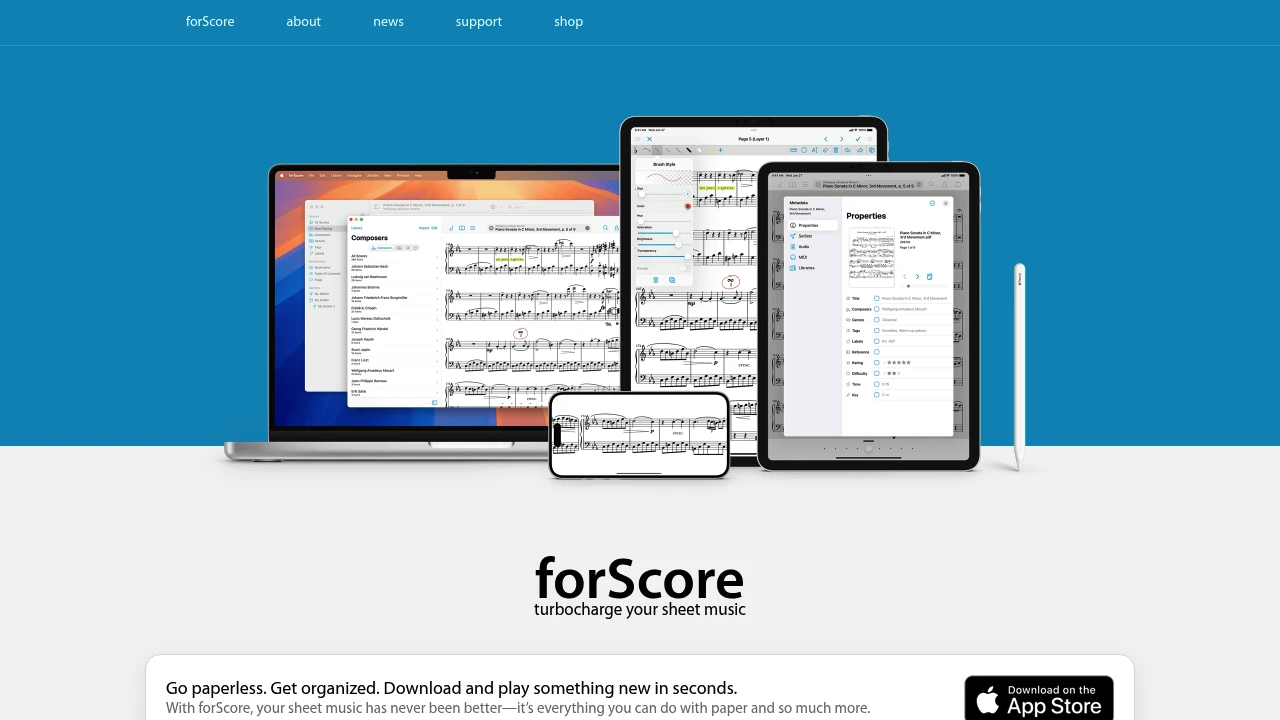
forScore supports setlists and several sharing formats, including a merged PDF with permanent annotations. Check the export choice before sending music to someone using a different reader.

Organize your digital sheet music library, create setlists, and perform hands-free. Annotate scores, sync across devices, and collaborate with other musicians.
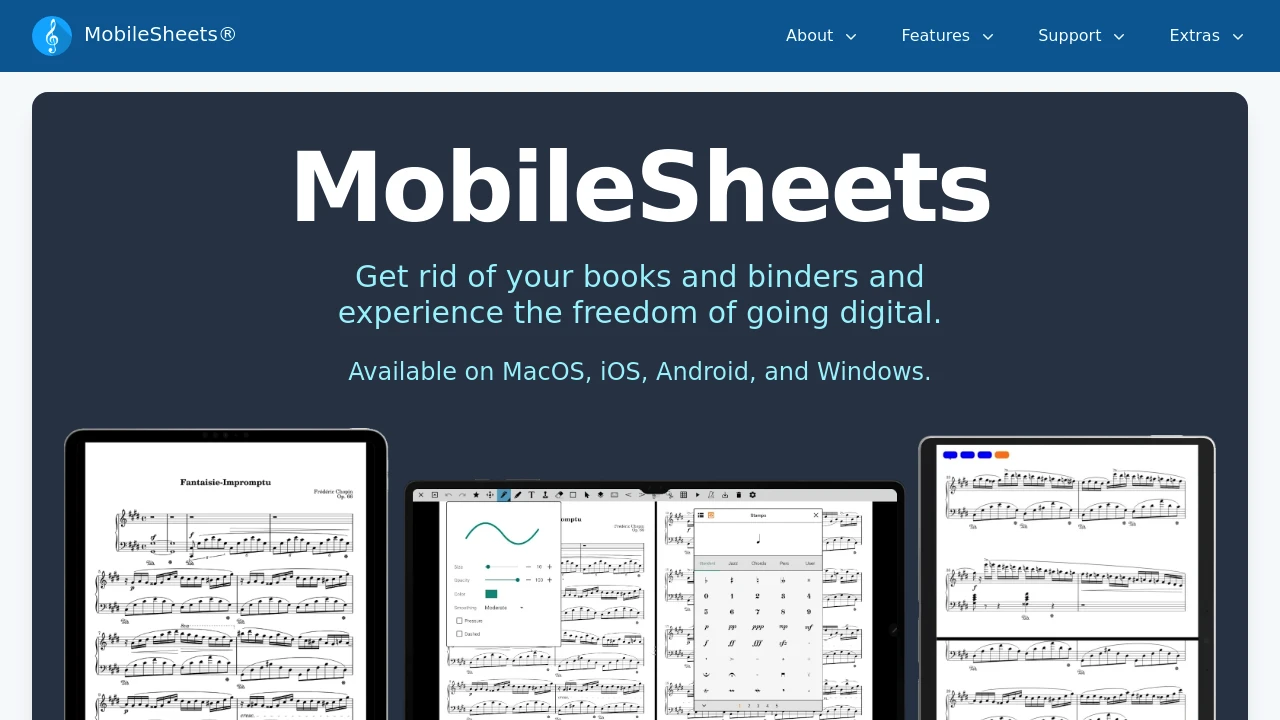
MobileSheets provides metadata, setlist sharing, and library backup tools. Its official tutorials cover these as separate workflows, so learn the one you need before reorganizing a large collection.

Manage your digital sheet music library, collaborate in real-time, and perform live. Turn any score into an interactive track with automatic page-turning.

Newzik stores sheet music and edits locally for offline use, then synchronizes them when a connection returns. Live sharing of materials and markings still requires an internet connection.
If you haven't chosen a reader yet, our guides to iPad sheet music apps and Android sheet music apps provide platform-specific starting points. Check current vendor documentation for compatibility and plan details before buying.
Prepare markings and page turns in rehearsal
Don't wait until the performance to discover that a repeat sends you several pages backwards. Play through the actual file on the device you'll use, with the same orientation and page-turn method.
Check the first and last bars of every page. Look for missing systems, clipped rehearsal marks, and scans that become hard to read at normal playing distance. If you crop margins, confirm that you haven't hidden dynamics or other notation.
Then test the musical route: repeats, first and second endings, cuts, codas, and transitions between pieces. Where your reader supports bookmarks or page ordering, use those features deliberately and rehearse the result. A simpler file layout may be better than a clever navigation shortcut you haven't practiced.
For ensemble work, distinguish personal reminders from agreed changes. A breath mark for one player isn't automatically an instruction for the whole section. Record shared cuts and version changes in one place, and make someone responsible for confirming the current parts.
This preparation belongs inside the same feedback loop as effective music practice: try the passage, notice the obstacle, make a specific change, and test it again.
Test offline access and the handoff
An item appearing in your library doesn't prove the whole performance is ready offline. Let downloads and synchronization finish, then test the actual material without an internet connection.
Newzik's offline guidance makes an important distinction: performance features can work offline, but real-time sharing, cloud imports, sign-in, and saving edits to its server need connectivity. Its synchronization guide explains the status messages for uploading changes, fetching data, and downloading files.
Use this short pre-gig test:
- Finish importing and updating the event's music while connected.
- Disconnect from the internet, keeping Bluetooth available if your page-turner needs it.
- Open every piece and check the markings and page sequence.
- Test the pedal or other page-turn method from your playing position.
- Reconnect afterwards to complete any outstanding sync work.
When sharing with another musician, check what the export actually contains. forScore's setlist-sharing documentation distinguishes a setlist-only file from exports that include scores. It also offers an annotated merged PDF, where markings become permanent rather than editable forScore annotations.
Ask the recipient to open the handoff before rehearsal. Share only material you're permitted to distribute, and check publisher or library terms when unsure.
Back up more than the original PDFs
A folder of clean PDFs may not preserve the work you've added in your reader. Check how your app stores annotations, metadata, setlists, and settings before deciding that the library is backed up.
forScore's backup documentation explains the distinction clearly. A standard 4SB backup stores private app data, but needs the accompanying document files for a complete recovery. A 4SB archive includes both the private data and the files, and therefore needs more free space to create.
MobileSheets' official tutorials separately cover library backup and restore, library synchronization, and exporting songs or setlists. Use the documented backup workflow rather than assuming a shared setlist can restore your whole library.
Keep a dated recovery copy away from the performance device. Where practical, test restoration on a spare device or a separate test library, following the vendor's instructions without overwriting your working collection. Don't make your first recovery attempt minutes before a show.
For an important event, also decide what happens if the main device fails. That might mean a checked spare device or a permitted paper copy of essential parts. The fallback should be something you can actually use, not another untested download.
Make digital sheet music organization a routine
A dependable library doesn't need a complex filing system. It needs clear identities, an event-specific setlist, readable pages, and a recovery plan you understand. Those habits matter whether you're preparing a student's lesson, a pub set, or an orchestral program.
Start with the next event rather than your entire collection. Choose the correct parts, name them consistently, and put them in performance order. Play through the awkward turns with the device and controller you'll use. Then open the setlist without internet access and check that the music and markings are there.
Before you call the job finished, make a dated backup using your reader's documented process. Keep it away from the tablet. If you're handing music to someone else, confirm the export format and ask them to open it. A successful upload isn't the same thing as a usable part on another player's stand.
After the rehearsal or gig, take a few minutes to close the loop. Save agreed corrections, remove confusing duplicates from the active setlist, and record which version the group used. Keep older source files separately if you still need them, rather than leaving several competing copies in the next performance list.
You don't have to rebuild everything today. Prepare one set well, repeat the process, and carry the useful habits into the next project. That's a more practical goal than a perfectly tagged library that nobody trusts on stage.