How to Prepare a Mix for Mastering
Learn how to prepare a mix for mastering with clear checks for headroom, export settings, file quality, and handoff notes. Send your next song with confidence.

Written by Kevin Christensen
To prepare a mix for mastering, export the approved version without unwanted clipping, preserve the full ending, and follow your engineer's delivery instructions. The goal isn't to make the mix as loud as a released record. It's to hand over the sound you want, with room for the final work.
Whether you're hiring an engineer or comparing mastering tools, start with the same checks. This short workflow helps you send the right file and explain what you want from it.
Fix the mix before you export
Listen for problems you can still solve inside the session: a buried vocal, an uneven bass part, harsh cymbals, or a click at an edit. Don't leave a specific instrument problem for mastering just because the song feels nearly finished.
In iZotope's interviews with mastering engineers, recurring problems include unclear low end, mono compatibility, and clicks in exported files. These are useful things to check, not a reason to rebuild every mix.
Try three focused listening passes:
- Balance: Can you follow the lead part through the busiest section?
- Mono: Do important parts become much quieter or disappear when you sum the mix to mono?
- Start and finish: Is the first note intact, and does the final reverb or sustained note end naturally?
For a band recording, ask one person to collect everyone's final notes. Agree which version is approved before exporting it. That keeps an old vocal edit or alternate solo from reaching mastering by mistake.
Leave room without chasing a magic number
Headroom is the space between your signal's peaks and the clipping limit. It isn't the same thing as dynamics: turning down a heavily limited mix makes it quieter, but doesn't undo the limiting.
Ask the mastering engineer how much headroom they want. For an automated service, read its upload requirements instead. Don't treat a particular peak level or LUFS reading as a universal entrance requirement.
Review the processing on your stereo output. A limiter added only to make a preview loud may not belong on the mastering version. A compressor or saturation effect that shapes the song's sound needs a more careful decision.
iZotope's collaboration guidance recommends communicating that intent and supplying both versions when the processed sound matters. Label the listening reference separately from the file intended for mastering.
If you're mastering the track yourself, a processing tool serves a different purpose from a loudness meter. Keep the approved mix export separate from any self-mastered version.

Get professional-quality audio with intelligent plugins for mastering, mixing, and repair. Use AI assistants to achieve your desired sound faster and easier.
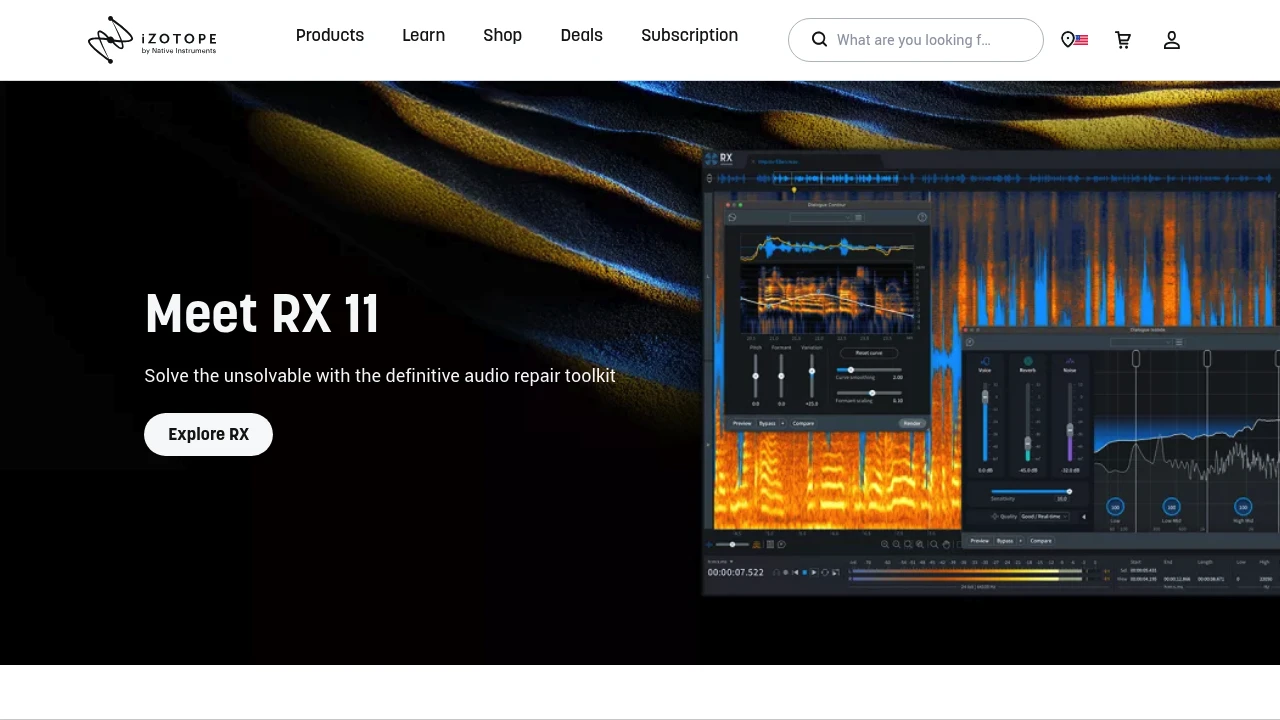
iZotope Ozone 12 is a mastering suite whose Master Assistant analyzes your track and suggests a processing chain you can adjust. Use it for a self-mastering pass or a clearly labeled listening reference, not as a required step before sending your mix to an engineer.

Get precise loudness analysis for your tracks. Ensure compliance with regulations and deliver professional, consistent audio for broadcast, TV, and streaming.
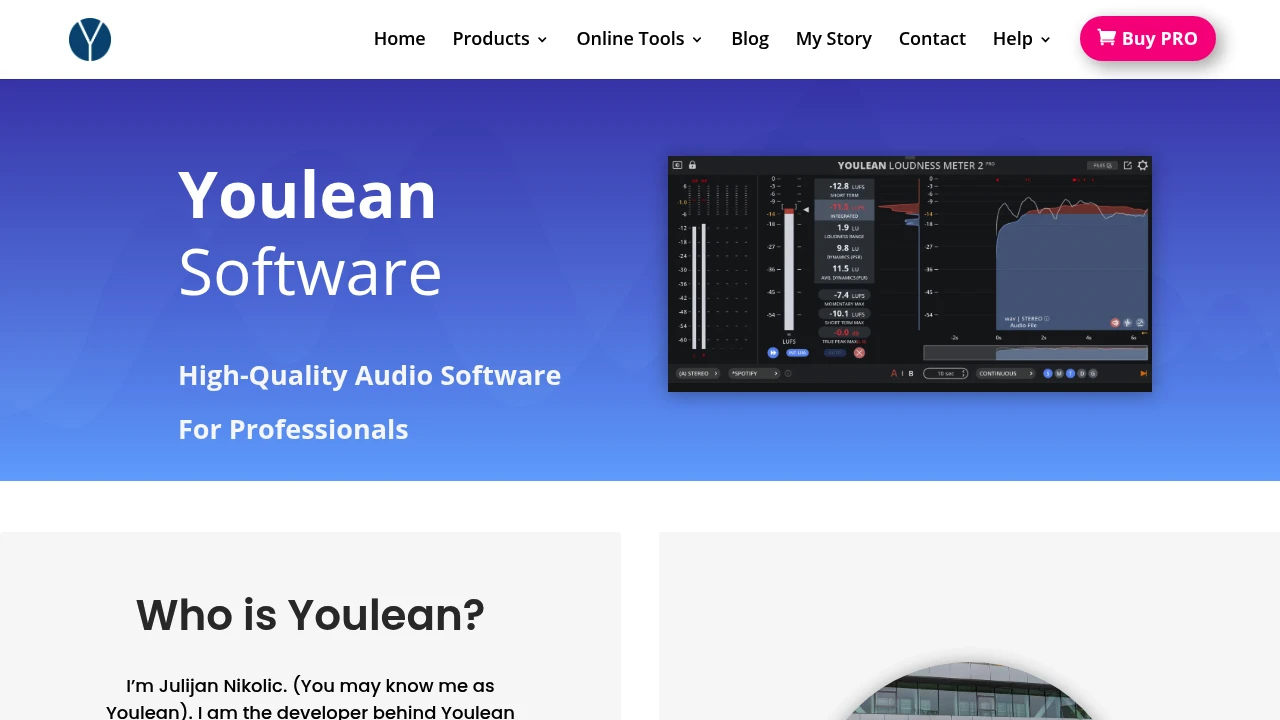
Youlean Loudness Meter measures loudness and true peak, helping you inspect the mix rather than guess from playback volume. It's an analysis tool, not a processor that changes the audio.
The developer's feature page confirms those measurements and explains that the meter doesn't alter loudness. Use the readings to spot issues and answer delivery questions, not to replace listening.
Export the right file, then listen to it
Confirm the required format, sample rate, and bit depth before sending anything. For a typical stereo handoff, WAV or AIFF is a sensible starting point, subject to the recipient's instructions.
Sage Audio's mix-preparation guide recommends exporting at the recording and mixing resolution rather than converting on export. If your session runs at 48 kHz, don't change it to 44.1 kHz merely because you associate that number with music releases. Ask which bit depth the engineer accepts if you're unsure.
Export directly from the session, not from an MP3 preview. Converting that preview to WAV won't restore the audio information already removed.
Open the exported file and listen from beginning to end. Check that:
- The correct version plays, including the approved vocal or solo.
- No part is accidentally muted, soloed, or missing.
- There are no clicks, dropouts, or unwanted distortion.
- The export doesn't cut off the opening or effect tails.
- The file format matches the agreed instructions.
Do this even if the session played correctly. You're checking the actual file someone else will receive.
Send a clear handoff, not a folder of guesses
Use a filename such as Artist_Song_Mix07_ForMastering.wav. Keep the loud listening reference clearly separate, and avoid ambiguous names like final_new_FINAL.wav.
Include a short note with the approved filename, any intentional distortion or bus processing, and one or two reference tracks. Explain what you like about each reference: vocal presence, bass weight, or a more open feel. A reference is a direction, not a promise that different recordings will sound identical.
List any alternate versions you need and agree on them before work starts. Keep those decisions in your music release management checklist. Once the master is approved, use the music distribution guide for the next stage, checking your distributor's current delivery requirements.
A good handoff doesn't need a complicated technical report. It needs an approved mix, a checked export, clear filenames, and a short explanation of your intent. Before sending your next song, listen once to the exact file you're about to upload. Then make sure the recipient can tell which version to use without asking.