How to Export Stems for a Smooth Music Handoff
Learn how to export stems with aligned timing, clear effects choices, and reliable file checks. Give collaborators a clean music handoff without the guesswork.

Written by Kevin Christensen
To export stems, render related groups of instruments as separate audio files using the same start point and export range. Then import them into a fresh session and check that they line up. Before you start, confirm whether your collaborator wants grouped stems or every individual track.
You can do this inside your digital audio workstation. This guide focuses on moving a song from your session to someone else's without missing parts, shifted timing, or confusion about effects.
Agree on stems or multitracks first
A stem is a mixed group of related tracks saved as one audio file. For a band recording, you might deliver drums, bass, guitars, keyboards, and vocals. Multitracks keep individual elements separate, such as kick, snare, overheads, and each vocal take.
iZotope's guide to stems and multitracks makes this distinction, while noting that people use the terms loosely. Ask for a file list instead of assuming you both mean the same thing.
For example: "Do you want one stereo drum stem, or separate kick, snare, tom, and overhead files?" A mix engineer rebuilding the balance may need individual tracks. A collaborator making an alternate arrangement may prefer a few grouped stems.
Agree on these details before exporting:
- Contents: grouped stems, individual tracks, or both.
- Processing: effects printed into the files, dry alternatives, and any separate effects returns.
- Format: file type, sample rate, bit depth, and mono or stereo requirements.
- Timing: common start point, export end, tempo, and any tempo changes.
If the job is a conventional stereo mastering handoff, you may need one approved mix instead. Our guide to preparing a mix for mastering covers that different delivery.
Keep every file on the same timeline
Choose one export range for the whole delivery. Include the lead-in and enough time after the last note for reverb, delays, and sustained sounds to finish.
Don't trim a late-entering guitar to its first note. Its opening silence keeps it in position when someone drops all the files at the same start point. Likewise, don't export the vocals from the first chorus while exporting the drums from the beginning.
Ableton's stem-export instructions explicitly recommend rendering the full arrangement range, regardless of where each instrument starts or ends. They also advise turning normalization off. Normalizing each file separately can change the balance between your exported parts.
Use the recipient's agreed format rather than copying settings from an unrelated release checklist. WAV is a practical starting point, but confirm the sample rate and bit depth they want. Export the working audio from your session, not an MP3 listening copy.
For a song with tempo changes, include a clear tempo note and ask whether the recipient needs a tempo map. Audio files that line up at the start are not a substitute for agreeing how the new session handles tempo.
Decide what happens to effects
"Dry" needs an explanation. Does it mean no reverb, no processing at all, or simply no effects on the stereo output? Write down what you leave in.
A guitar's amp sound or a vocal's rhythmic delay may be part of the arrangement. Ask before removing it. If the recipient needs flexibility, agree on clearly labeled processed and unprocessed versions rather than sending unexplained duplicates.
Check shared reverbs and group routing too. Decide whether each effect belongs inside a stem or in a separate return file. Don't accidentally deliver both versions for simultaneous playback and count the same effect twice.

Generate and reshape MIDI patterns with powerful new tools. Discover unique sounds with instruments like Meld and Roar, and find them faster with an improved, tag-based browser.

Ableton Live can export individual tracks and offers an option to include return and main-output effects. Check those choices against the agreed handoff rather than assuming every export captures the same signal path.
The Live manual's export section explains its rendering options. An individual-track export isn't automatically a set of grouped instrument stems: choose the grouping and routing your recipient actually needs.

Create professional songs with powerful tools for songwriting, beat-making, editing, and mixing. Produce immersive Spatial Audio tracks with integrated Dolby Atmos.
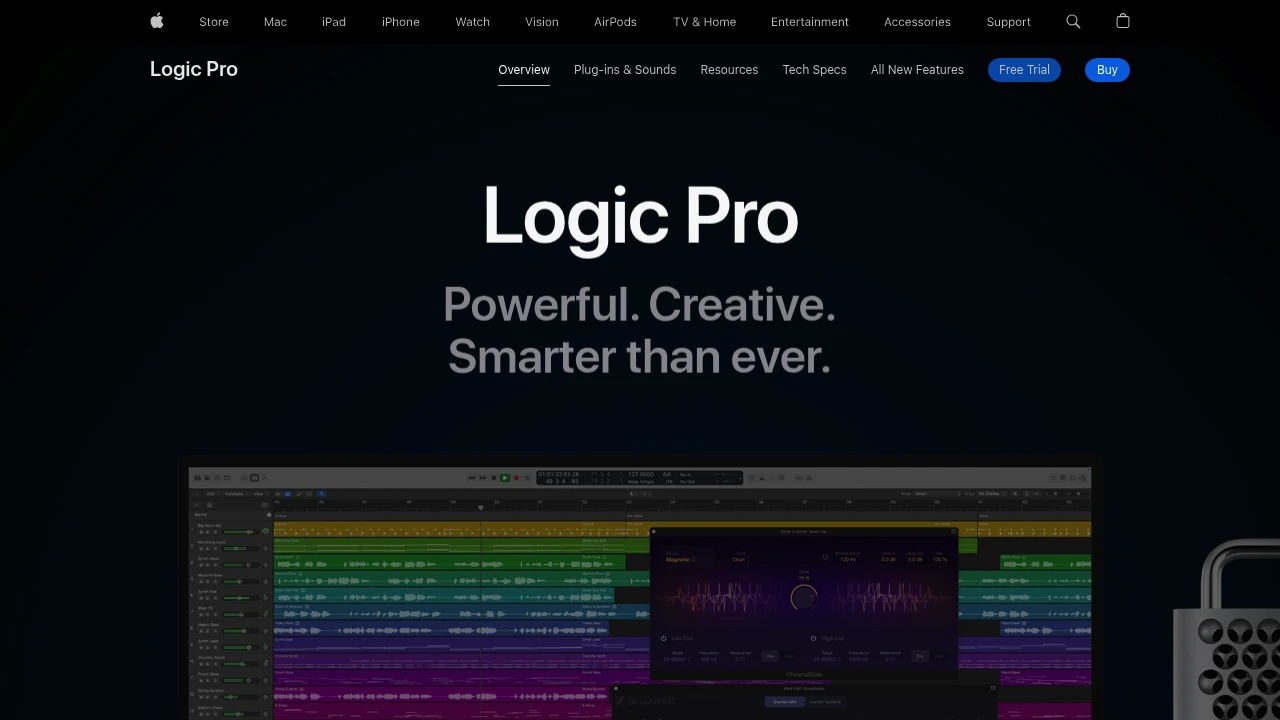
Logic Pro can export tracks as audio files, with controls for bypassing track effects and including audio tails. Those controls help you prepare the requested versions without losing the end of a sound.
Apple's track-export guide documents those settings. In either application, treat output processing as a separate decision and check the exported result, not just the checkbox labels.
Test the handoff before uploading
Import the exported files into an empty session at the agreed start point. Check that automatic time-stretching or tempo matching hasn't moved or stretched them unintentionally.
Play the set together, then inspect individual parts. Listen for missing notes, unwanted clicks, clipped endings, doubled effects, and an accidental click track. Compare the combined playback with a reference mix from the same version. If the balance or sound differs, investigate routing and processing before sending it.
Use clear filenames such as Artist_Song_V03_Drums.wav and Artist_Song_V03_LeadVocal_Dry.wav. Keep the full reference mix in a separate, labeled folder so nobody mistakes it for another stem to play alongside the others.
Add a short readme with the version, tempo, export format, start point, and processing decisions. Note which files are alternatives, not additional layers. Our online music collaboration guide can help you choose how to share files and collect feedback after that technical check.
A useful stem delivery lets the next musician start working without reconstructing your session. Agree on the parts first, preserve their timing, explain the processing, and test the actual files together. For your next handoff, make the empty-session import your final check. It's a practical way to catch an export problem before it becomes someone else's troubleshooting job.